Connect your Shopify store
Install and authorize Lovegodrop from Connect Store.
Connect Store →

Connect your store, import products, then make sure Lovegodrop is included in the shipping profile for those products. Follow the screenshots before testing your storefront.
This guide addresses a missing fulfillment-location setup. It does not create stock or guarantee that every product is available.
Lovegodrop needs applicable shipping options in the product’s profile.
If you already imported your products, skip straight to Steps 1–5. New merchants can follow the complete workflow below.
Install and authorize Lovegodrop from Connect Store.
Connect Store →Review the Import List, variants and selling prices, then Push to Store.
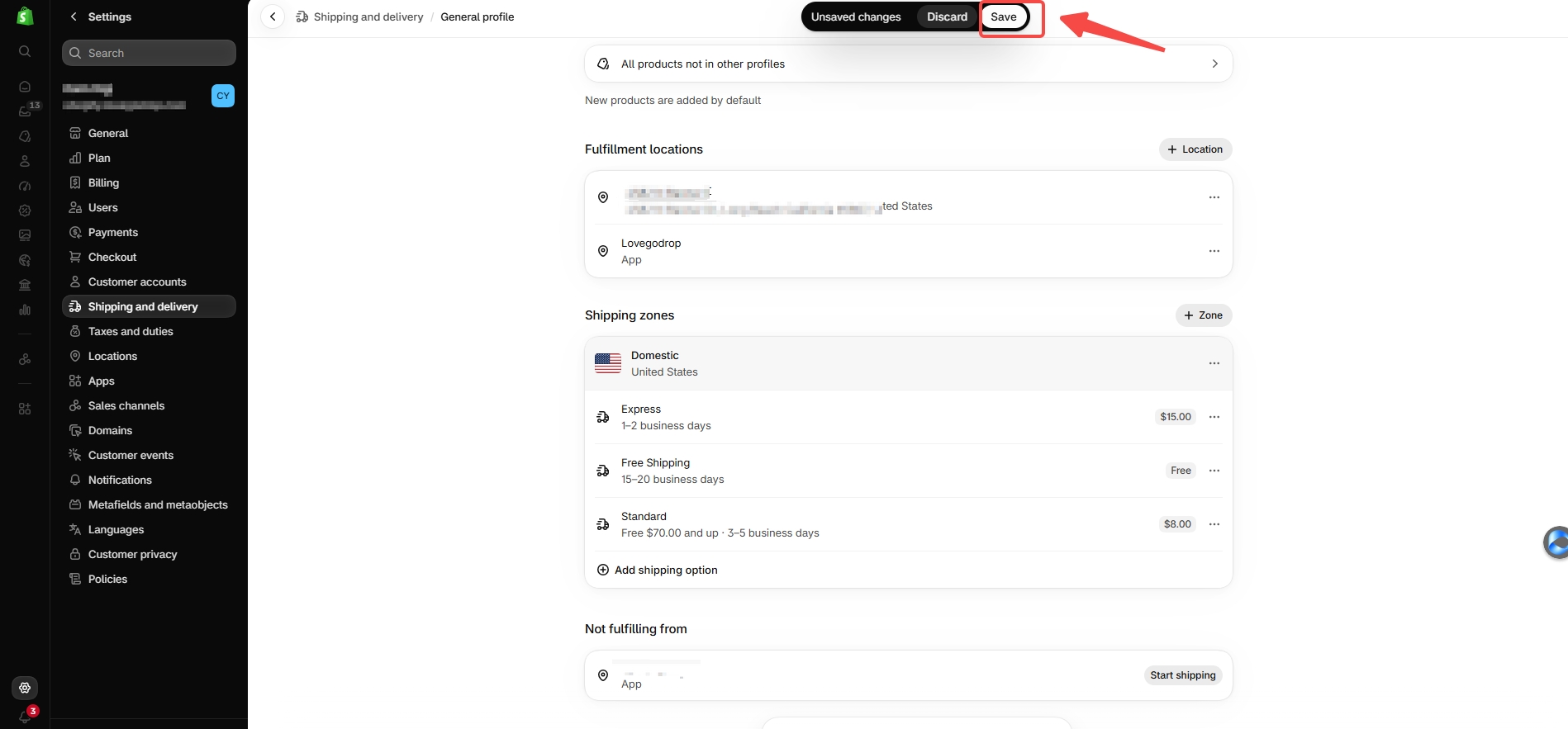
Open Import List →Add Lovegodrop to the relevant shipping profile and save.
Follow Steps 1–5 →Use Sync Orders for the connected Shopify store; verify the order details.
View order sync →Lovegodrop · Connect Store
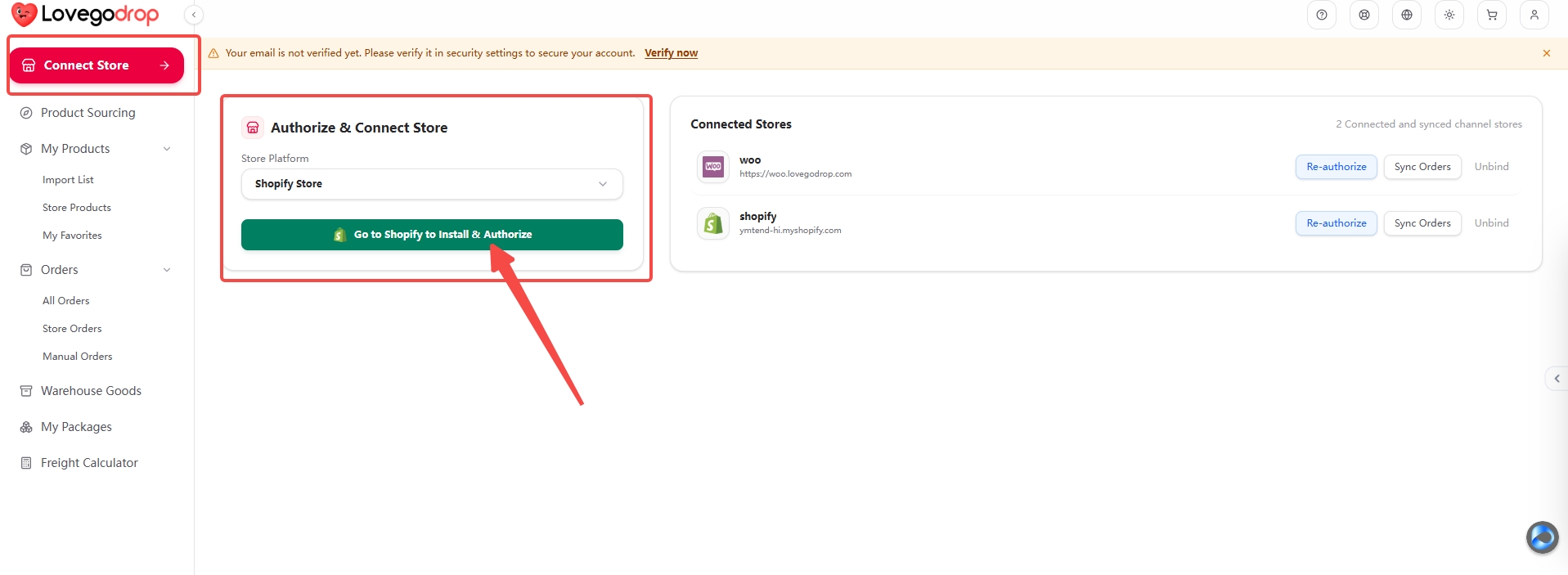
These are separate actions. Product import sends a listing to Shopify; order synchronization brings eligible customer orders back to Lovegodrop.
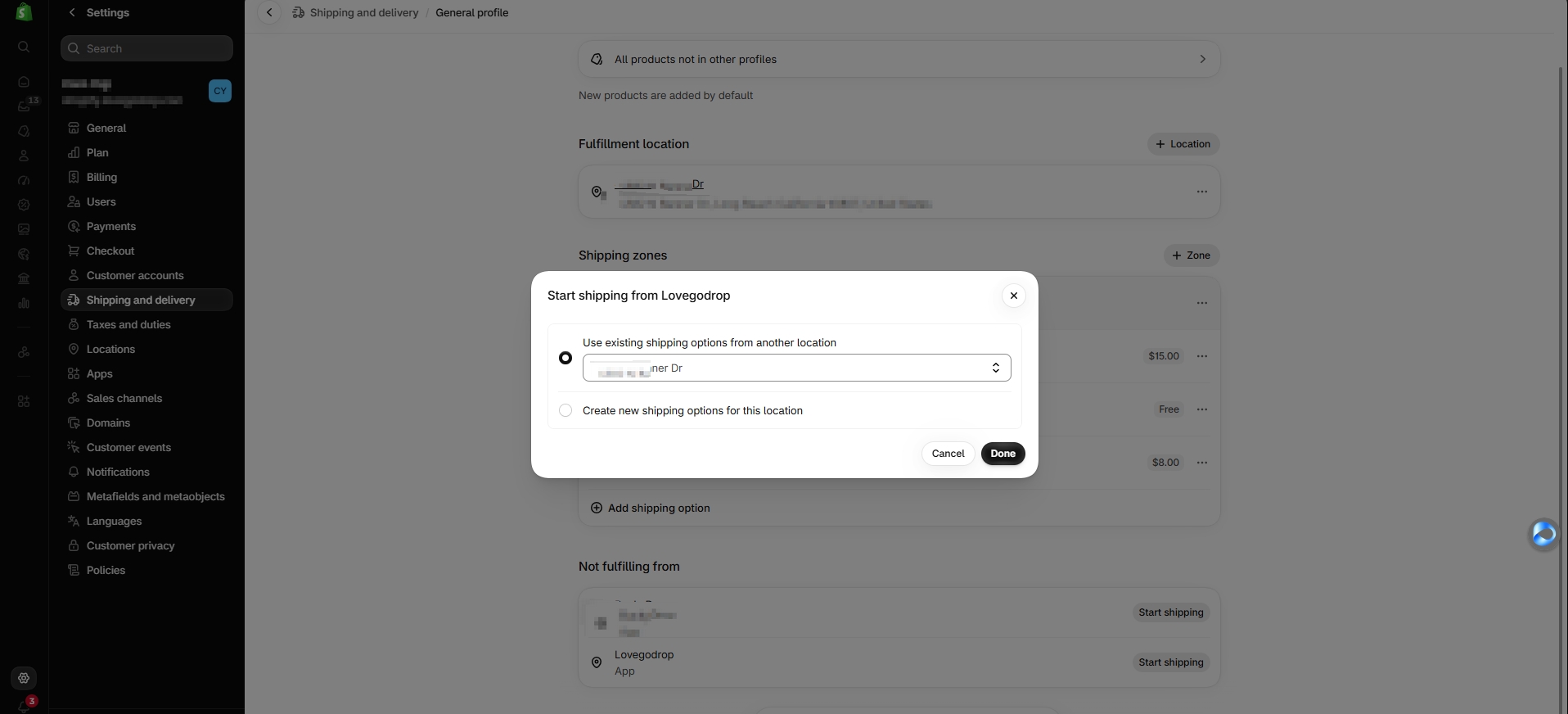
Use the shipping profile containing your imported products. The screenshots below show a demo store using Shopify shipping profiles.
Shopify admin · Bottom-left menu
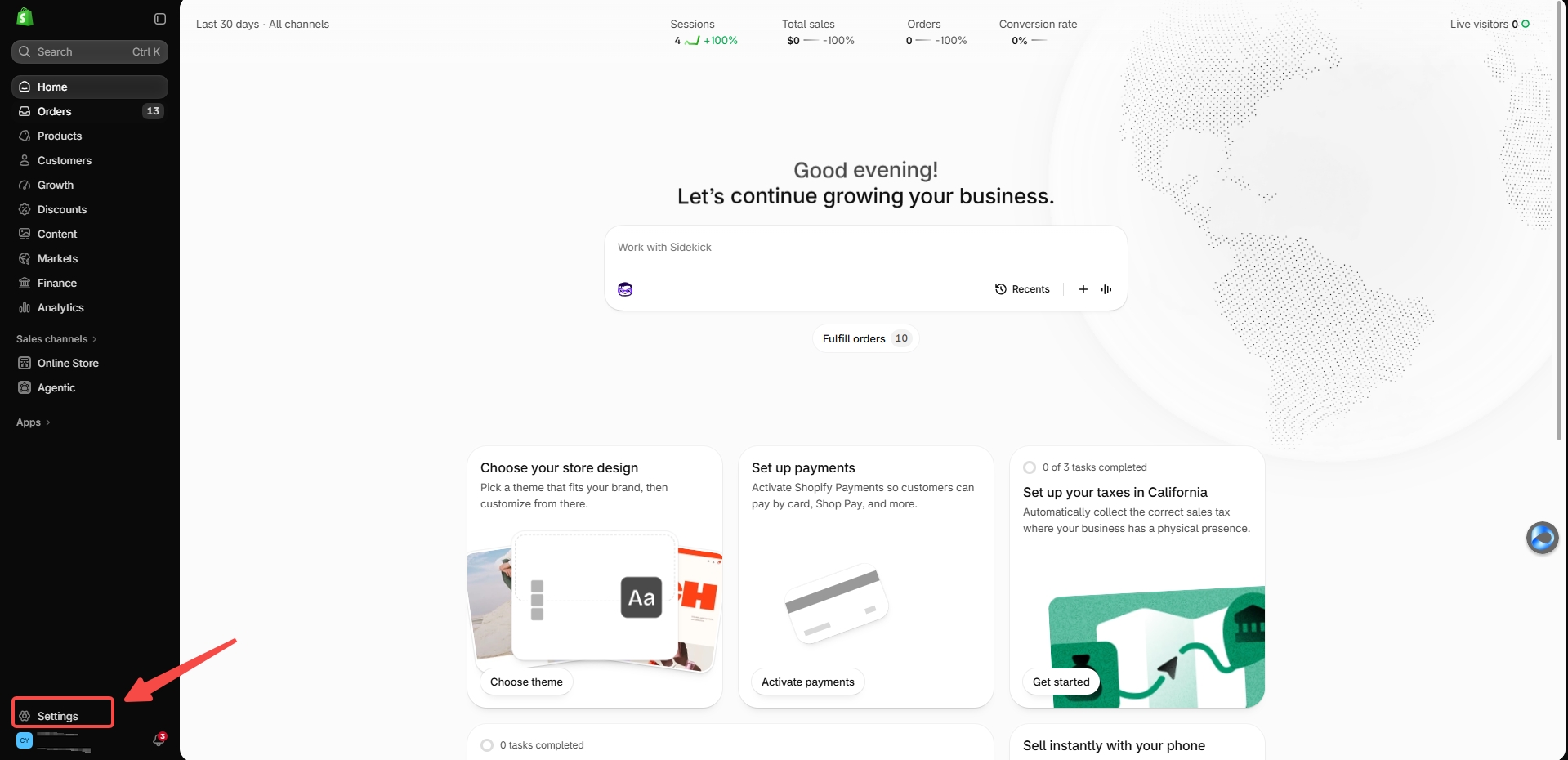
Settings → Shipping and delivery → Shipping profiles
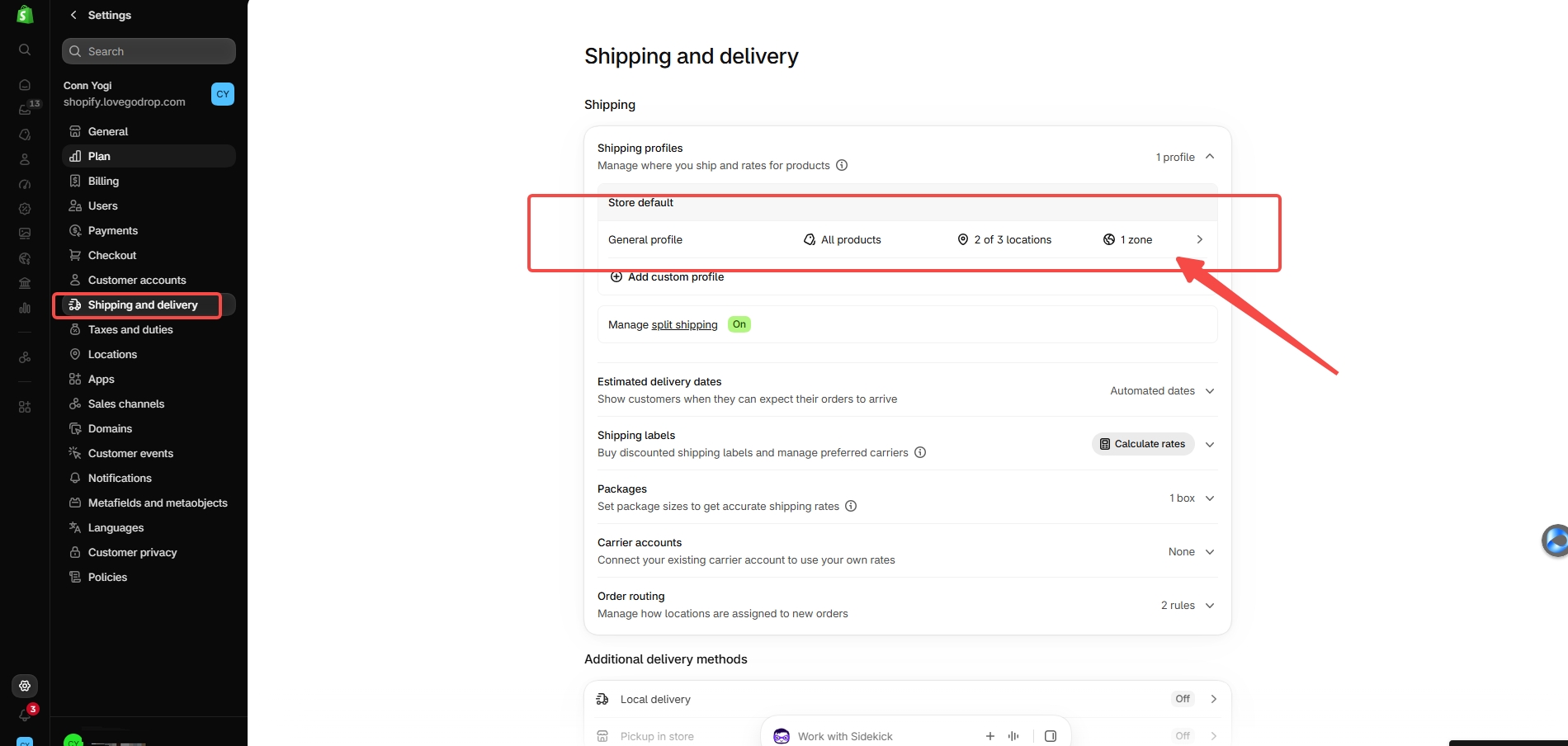
Shipping profile → Not fulfilling from → Lovegodrop
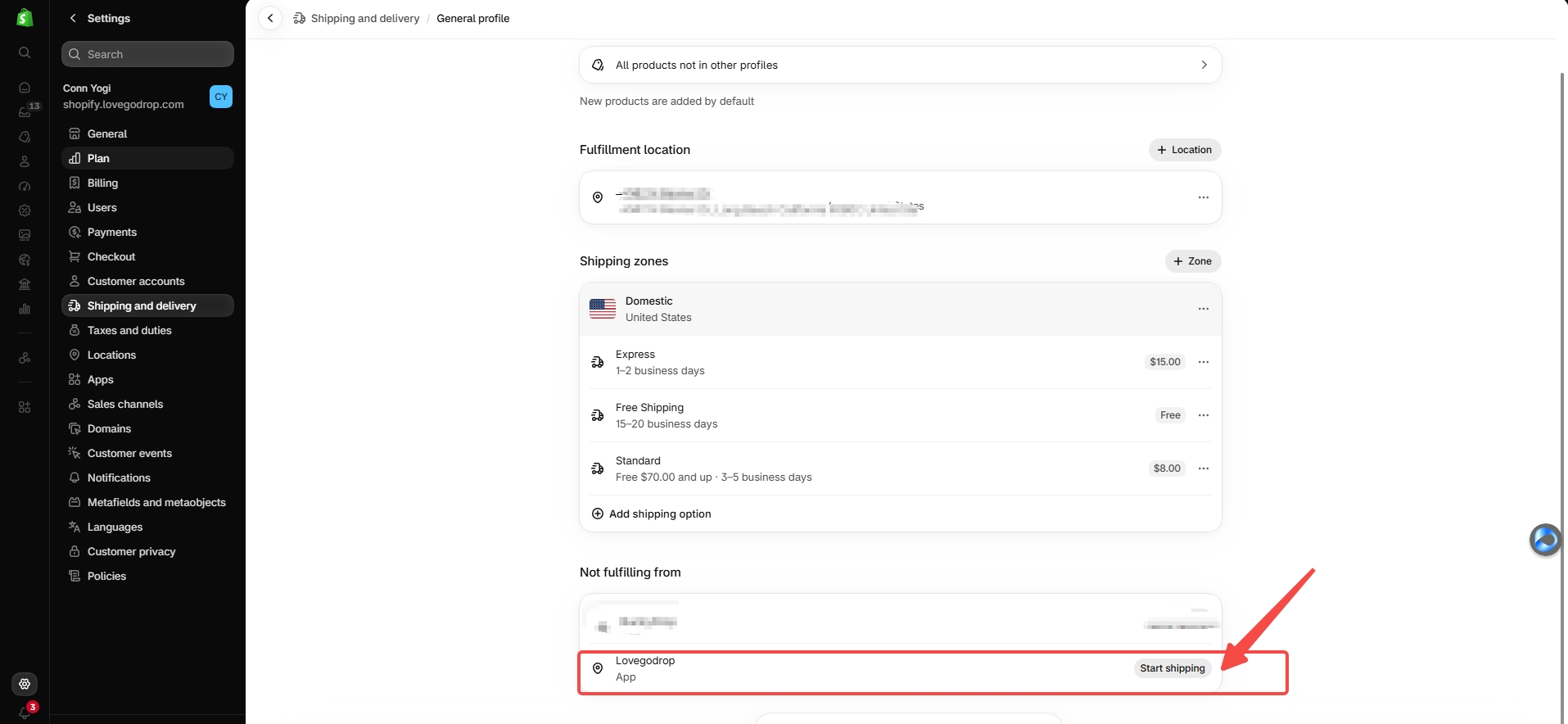
Start shipping from Lovegodrop
Shipping profile → Save
These are separate actions. Product import sends a listing to Shopify; order synchronization brings eligible customer orders back to Lovegodrop.
×Use this existing video for store connection, product import and order synchronization. For the shipping-location configuration, follow the screenshots on this page.
Watch on YouTube ↗Tick the items only after checking your store. This checklist records your own progress; it does not read or change Shopify.
A missing shipping-location setup is one possible cause. Use these checks if enabling Lovegodrop does not resolve the issue.
Confirm the app is installed and authorized in the correct store. Check whether Lovegodrop already appears in an existing fulfillment group. If the app location is missing or inactive, ask support to verify the installation/location before deleting or reinstalling the app.
Check the exact variant, inventory location and available online quantity—not only the total inventory shown in Shopify. Check product activation and publication too. Confirm the source product is actually available. Do not turn off inventory tracking or enable overselling solely to hide an unavailable product.
Check the destination country/region, active market, product profile and the rates/options for the location fulfilling the item. If products come from different location groups, checkout can combine rates. Use a real target destination to verify the result.
No. Shopify checkout rules determine what your customer sees/pays in your store. Lovegodrop purchasing and international shipping costs follow the applicable sourcing and fulfillment quote. Review those costs and route conditions separately before payment.
Not necessarily. Products using the same profile share its applicable rules. Repeat the check when a product uses another custom profile, when you add a location, or when shipping settings change.
Treat synchronization as a data step. Review the sourcing/quotation and follow the applicable merchant-approved payment and fulfillment workflow. Refer to the full merchant guide for product-cost, QC and shipping-payment steps.