Shopify setup · New merchant guideShopify

Imported your products?
Enable Lovegodrop shipping.

Connect your store, import products, then make sure Lovegodrop is included in the shipping profile for those products. Follow the screenshots before testing your storefront.

This guide addresses a missing fulfillment-location setup. It does not create stock or guarantee that every product is available.

The setting to check
BEFORE SETUP
Not fulfilling from
Lovegodrop · App
EXPECTED AFTER SAVE
Fulfillment locations
Lovegodrop · App

Lovegodrop needs applicable shipping options in the product’s profile.

01 · Lovegodrop + Shopify

One setup. Four checkpoints.

If you already imported your products, skip straight to Steps 1–5. New merchants can follow the complete workflow below.

Connect your Shopify store

Install and authorize Lovegodrop from Connect Store.

Connect Store →


Import selected products

Review the Import List, variants and selling prices, then Push to Store.

Open Import List →

Enable the fulfillment location

Add Lovegodrop to the relevant shipping profile and save.

Follow Steps 1–5 →

Sync eligible customer orders

Use Sync Orders for the connected Shopify store; verify the order details.

View order sync →
0

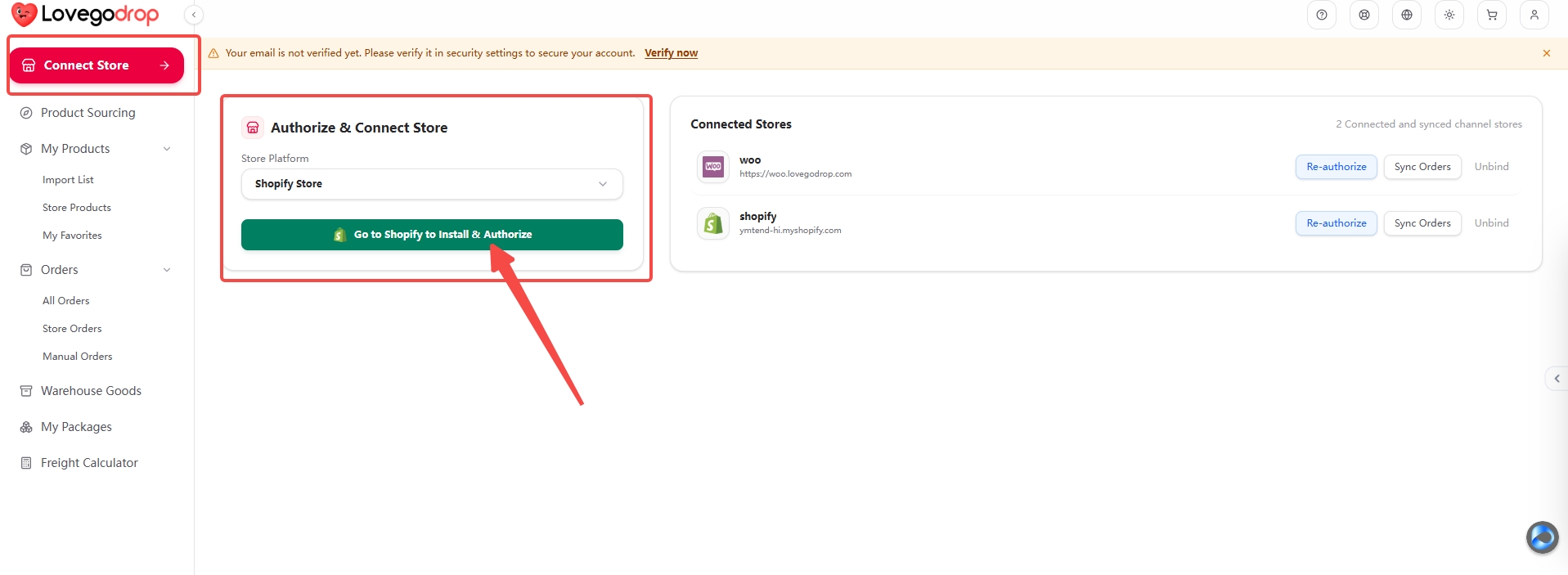
Connect and authorize your Shopify store

Lovegodrop · Connect Store

  1. Open Connect Store in your Lovegodrop workspace.
  2. Under Store Platform, choose Shopify Store.
  3. Click Go to Shopify to Install & Authorize and approve the requested access in the correct Shopify store.
  4. Return to Lovegodrop. Confirm that your Shopify store appears under Connected Stores.
What you should seeYour Shopify store is listed as connected.

1 · Locate it in the full screen

Connect and authorize your Shopify store — Lovegodrop · Connect Store
Open full screenshot ↗
Follow the red arrows and outlines in the full screenshot to find the location. Use the close-up for button details. Click either image to zoom and scroll through the unchanged original.
If the store is already connected, do not install it again just to follow this guide. Use Re-authorize only if the connection needs it.

Import products, then synchronize orders

These are separate actions. Product import sends a listing to Shopify; order synchronization brings eligible customer orders back to Lovegodrop.

Before shipping setup: import your product

Sourcing → Import List → Save → Push to Store → Store Products
  1. Open Product Sourcing / Sourcing and find a suitable product.
  2. Add it to your Import List. Review the source, selected variants and selling price.
  3. Save your listing and choose Push to Store for the connected Shopify store.
  4. Confirm the product appears in My Products → Store Products and in Shopify Products.
Open Import List →
02 · Enable Lovegodrop in Shopify shipping

Enable Lovegodrop in Shopify shipping

Use the shipping profile containing your imported products. The screenshots below show a demo store using Shopify shipping profiles.

Fulfillment location—not a sales channelThe Lovegodrop App location is configured under Shipping and delivery. Publishing a product to the Online Store sales channel is a separate setting.
1

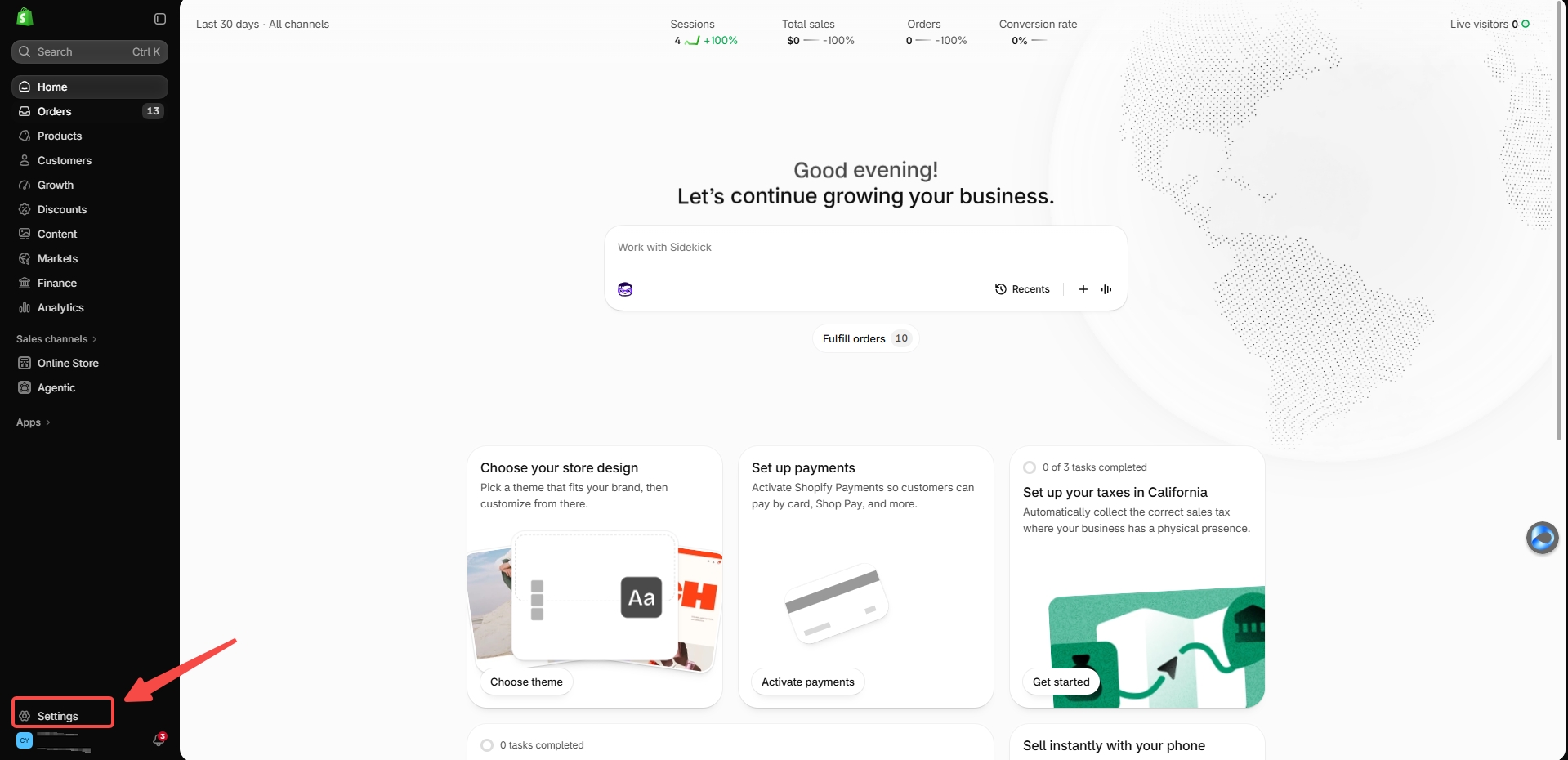
Open Shopify Settings

Shopify admin · Bottom-left menu

  1. Sign in to the Shopify store connected to Lovegodrop.
  2. Click Settings in the bottom-left corner of the Shopify admin.
What you should seeYou are in the Shopify settings area.

1 · Locate it in the full screen

Open Shopify Settings — Shopify admin · Bottom-left menu
Open full screenshot ↗
Follow the red arrows and outlines in the full screenshot to find the location. Use the close-up for button details. Click either image to zoom and scroll through the unchanged original.
The screenshots are from desktop Shopify. You can read this guide on mobile while completing the steps in your store admin.
2

Open the relevant shipping profile

Settings → Shipping and delivery → Shipping profiles
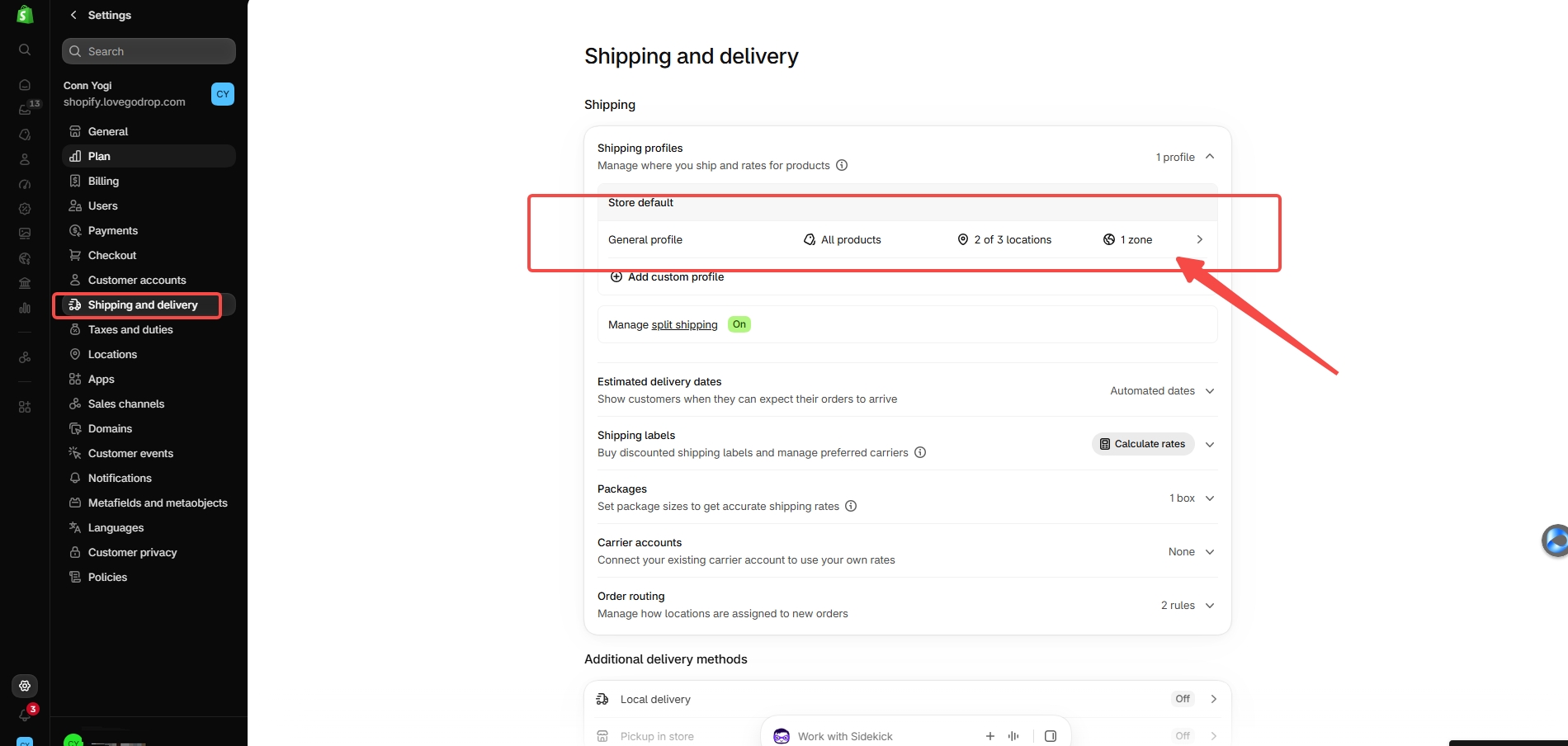
  1. Choose Shipping and delivery.
  2. Open General profile if it contains your Lovegodrop products, as shown in the screenshot.
  3. If those products are assigned to a custom profile, edit that profile instead.
What you should seeYou are editing the shipping profile containing the affected products.

1 · Locate it in the full screen

Open the relevant shipping profile — Settings → Shipping and delivery → Shipping profiles
Open full screenshot ↗
Follow the red arrows and outlines in the full screenshot to find the location. Use the close-up for button details. Click either image to zoom and scroll through the unchanged original.
Do not change unrelated product profiles or remove your other shipping locations.
3

Find Lovegodrop and click Start shipping

Shipping profile → Not fulfilling from → Lovegodrop
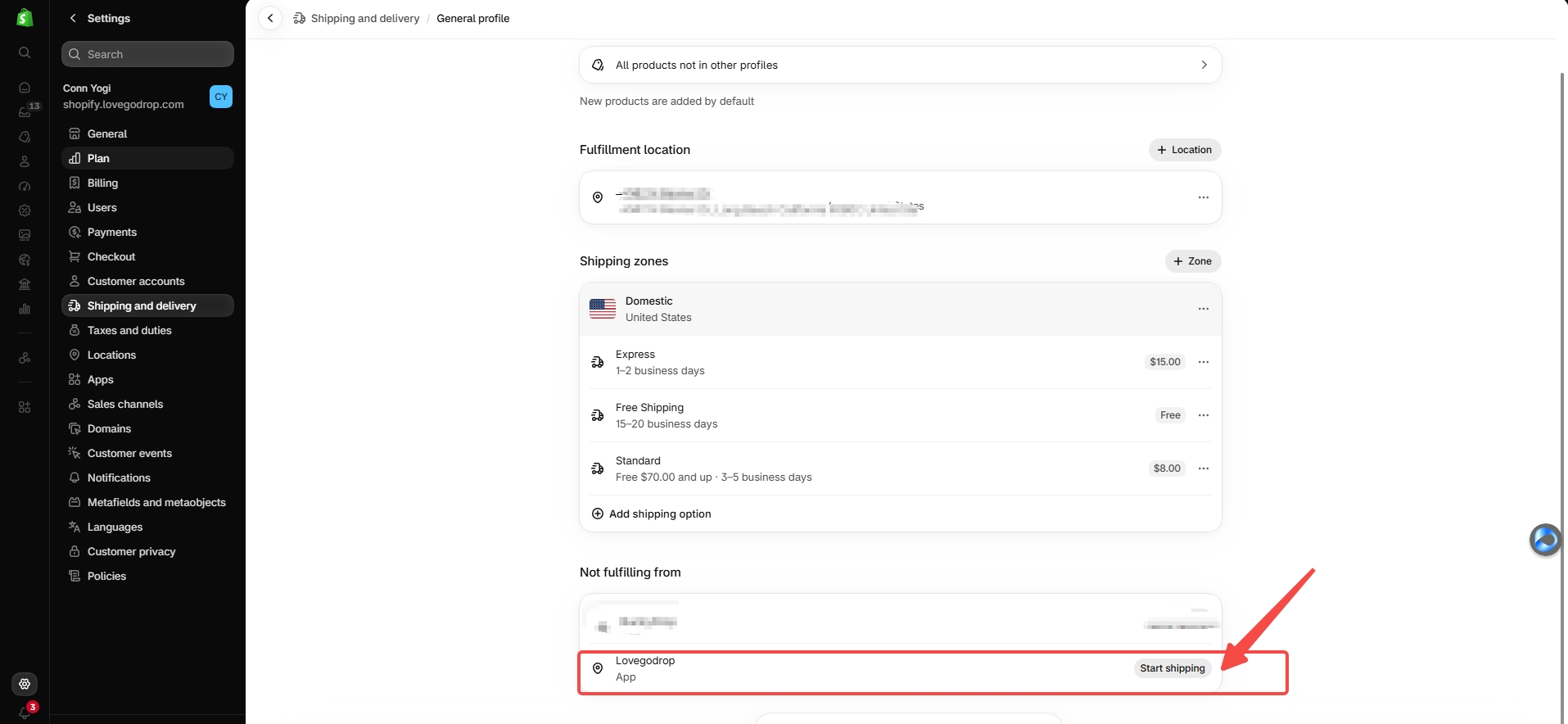
  1. Scroll to the Not fulfilling from section.
  2. Find the Lovegodrop row labeled App.
  3. Click Start shipping on that row.
What you should seeThe Start shipping from Lovegodrop dialog opens.

1 · Locate it in the full screen

Find Lovegodrop and click Start shipping — Shipping profile → Not fulfilling from → Lovegodrop
Open full screenshot ↗
Follow the red arrows and outlines in the full screenshot to find the location. Use the close-up for button details. Click either image to zoom and scroll through the unchanged original.
If Lovegodrop is already under Fulfillment locations, do not add it again. Check its shipping zones/options and continue with the final checks.
4

Choose the shipping options for Lovegodrop

Start shipping from Lovegodrop
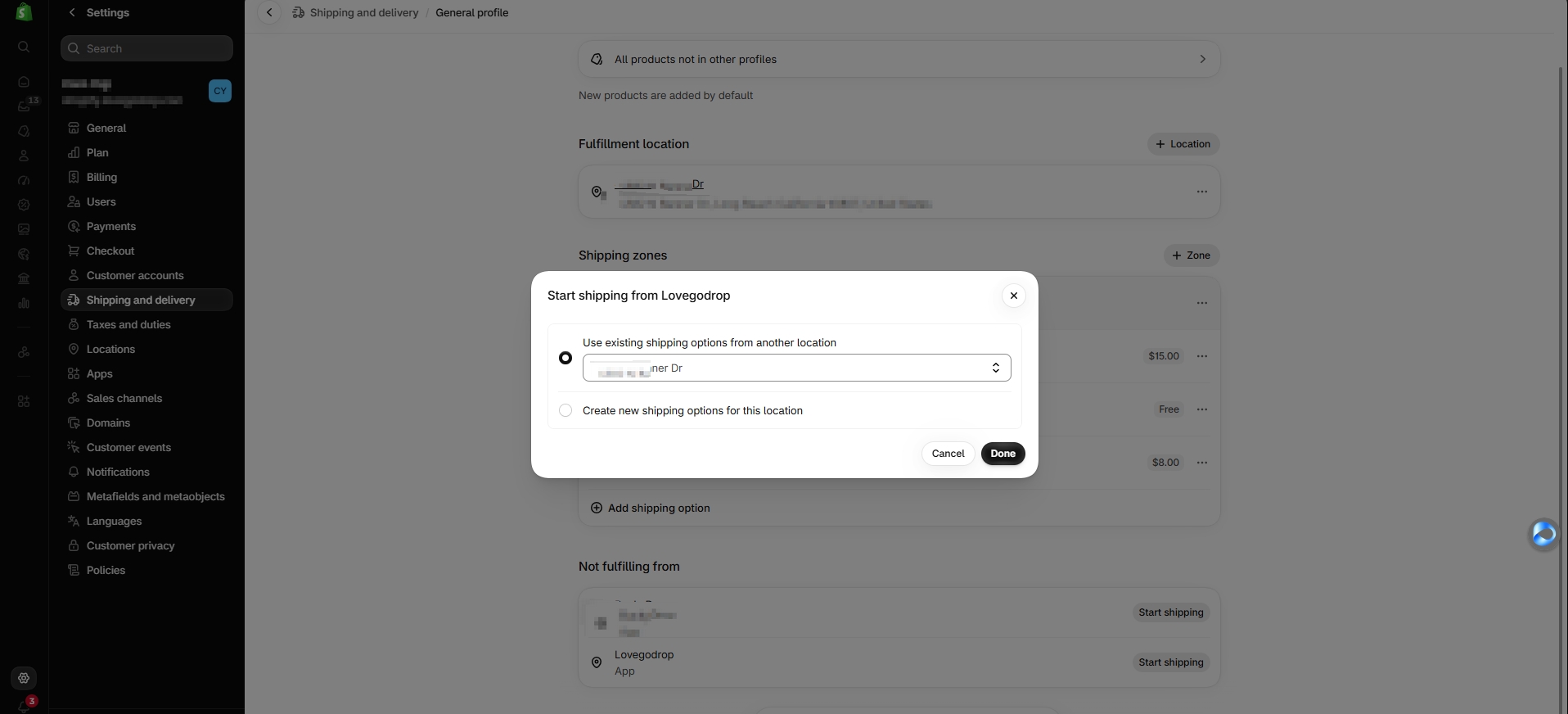
  1. To reuse suitable rules, select Use existing shipping options from another location.
  2. Choose the location whose shipping zones and rates should also apply to Lovegodrop.
  3. Alternatively, select Create new shipping options for this location and configure suitable zones/rates.
  4. Click Done when your selection is ready.
What you should seeLovegodrop is included with the intended shipping options; changes still need saving.

1 · Locate it in the full screen

Choose the shipping options for Lovegodrop — Start shipping from Lovegodrop
Open full screenshot ↗
Follow the red arrows and outlines in the full screenshot to find the location. Use the close-up for button details. Click either image to zoom and scroll through the unchanged original.
Choose rules that fit your product and destinations. The demo store’s prices, free shipping and transit times are examples—not Lovegodrop shipping quotes or delivery promises.
5

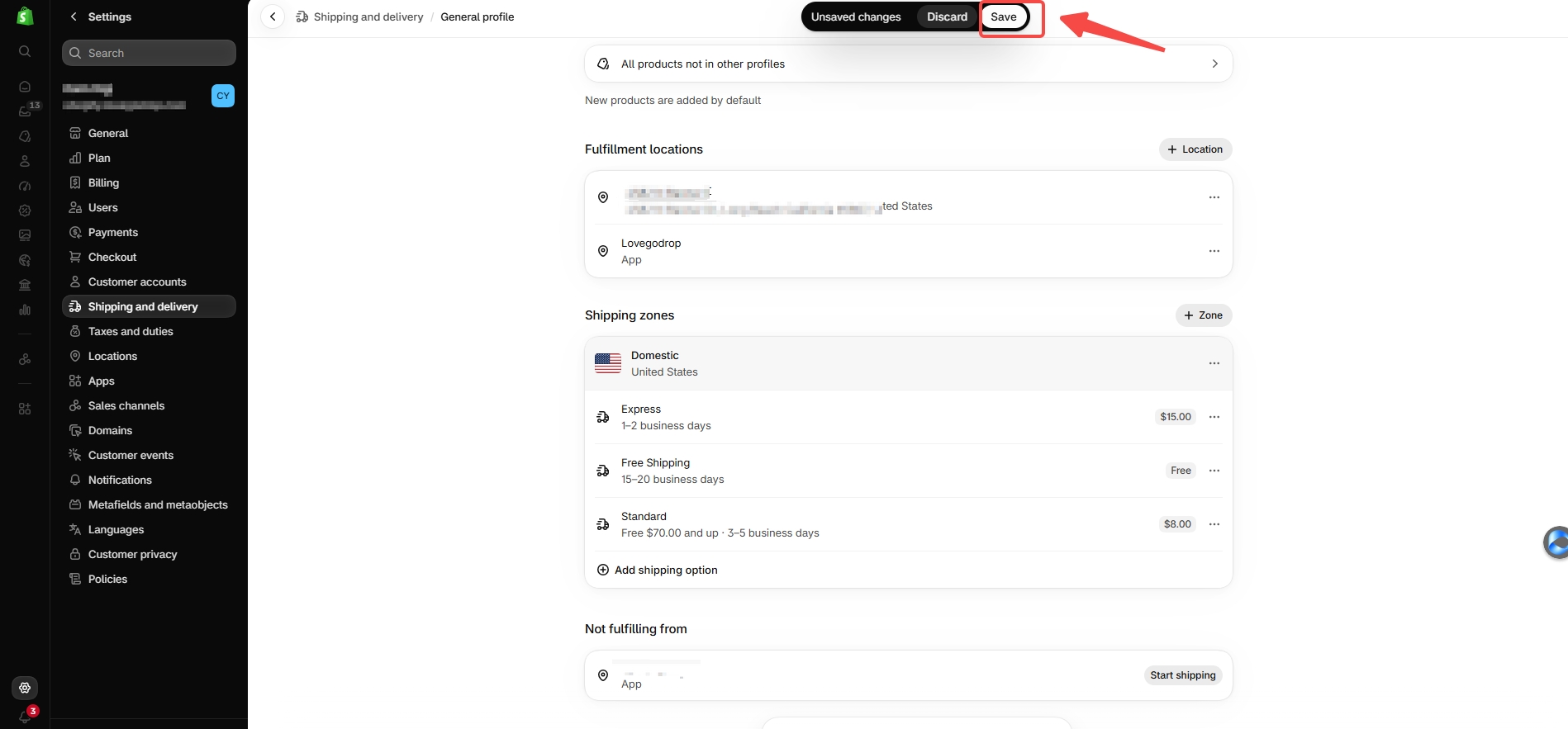
Save the profile and confirm the location

Shipping profile → Save

  1. Click Save in Shopify’s Unsaved changes bar.
  2. Confirm Lovegodrop now appears under Fulfillment locations for this profile.
  3. Check that appropriate destinations and shipping options apply to the Lovegodrop location.
What you should seeLovegodrop is no longer excluded from fulfillment in this product profile.

1 · Locate it in the full screen

Save the profile and confirm the location — Shipping profile → Save
Open full screenshot ↗
Follow the red arrows and outlines in the full screenshot to find the location. Use the close-up for button details. Click either image to zoom and scroll through the unchanged original.
Clicking Done alone is not the final save. Save the shipping profile before leaving the page.
Your Shopify screen may look differentShopify is gradually moving some stores to shipping options by market. If your store uses that interface, follow the equivalent product/location shipping options or use Shopify’s linked Help Center guidance.
03 · After setup: sync your customer orders

After setup: sync your customer orders

These are separate actions. Product import sends a listing to Shopify; order synchronization brings eligible customer orders back to Lovegodrop.

Connect Store → Connected Stores → Sync Orders
  1. In Connect Store, locate the correct Shopify store under Connected Stores.
  2. Click Sync Orders on that store row (visible in Screenshot 0).
  3. Alternatively, open Orders → Store Orders and use Sync Shopify if that button is available in your interface.
  4. Verify the synchronized order, product variant and quantity before sourcing or approving fulfillment.
Order sync is not inventory repairIf there are no eligible customer orders yet, an empty Store Orders list can be normal. Syncing orders does not itself add inventory or turn an unavailable variant into an available one.
Lovegodrop×Shopify
Connect · Import · Sync orders
Watch the complete Shopify walkthrough

Watch the complete Shopify walkthrough

Use this existing video for store connection, product import and order synchronization. For the shipping-location configuration, follow the screenshots on this page.

Watch on YouTube ↗
04 · Verify before you send customers to the product

Verify before you send customers to the product

Tick the items only after checking your store. This checklist records your own progress; it does not read or change Shopify.

Checklist progress is stored only in this browser. It is not proof that Shopify settings were changed.

Still sold out or unavailable?

A missing shipping-location setup is one possible cause. Use these checks if enabling Lovegodrop does not resolve the issue.

Lovegodrop is missing from the shipping profile. What should I check?

Confirm the app is installed and authorized in the correct store. Check whether Lovegodrop already appears in an existing fulfillment group. If the app location is missing or inactive, ask support to verify the installation/location before deleting or reinstalling the app.

The product still shows Sold out after I saved.

Check the exact variant, inventory location and available online quantity—not only the total inventory shown in Shopify. Check product activation and publication too. Confirm the source product is actually available. Do not turn off inventory tracking or enable overselling solely to hide an unavailable product.

The product can be added to the cart, but checkout has no shipping option.

Check the destination country/region, active market, product profile and the rates/options for the location fulfilling the item. If products come from different location groups, checkout can combine rates. Use a real target destination to verify the result.

Do Shopify checkout rates set the freight I pay Lovegodrop?

No. Shopify checkout rules determine what your customer sees/pays in your store. Lovegodrop purchasing and international shipping costs follow the applicable sourcing and fulfillment quote. Review those costs and route conditions separately before payment.

Do I need to repeat this setup for every product?

Not necessarily. Products using the same profile share its applicable rules. Repeat the check when a product uses another custom profile, when you add a location, or when shipping settings change.

Will syncing orders automatically purchase or ship them?

Treat synchronization as a data step. Review the sourcing/quotation and follow the applicable merchant-approved payment and fulfillment workflow. Refer to the full merchant guide for product-cost, QC and shipping-payment steps.

Full screenshotOpen original ↗

Zoom in, then scroll horizontally or vertically to inspect the original screenshot. Press Esc to close.