
Supplier Variant Matching: A Checklist for Existing Store Products
Practical worksheet for Shopify & WooCommerce sellers
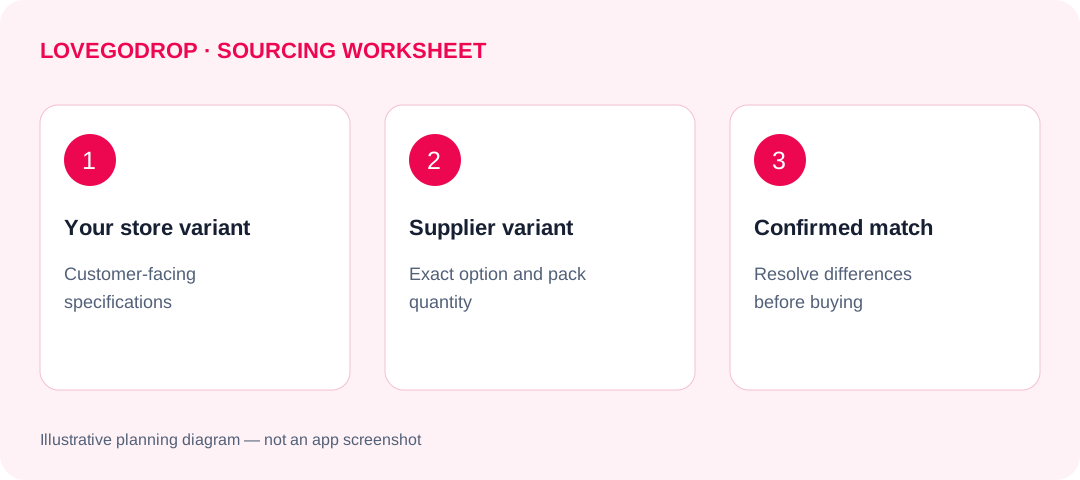
A supplier match should connect a specific store variant to a specific supplier variant—not just connect two similar-looking product pages.
Before you approve a match, compare the specifications your customer is buying with the specifications the supplier is offering. Size, color, material, compatibility and pack quantity can all change what arrives, even when the main product image looks identical.
This checklist is for sellers sourcing products already listed in their Shopify or WooCommerce stores. It helps you review the match; it does not replace the connection and binding instructions in the Lovegodrop merchant guide.
Start with what your listing actually promises
Use your store listing as the customer-facing specification. Collect the variant name, your internal SKU, images, measurements, included components and any compatibility claims you have made.
Then inspect the candidate supplier variant. Do not assume that matching names prove equivalence.
For example:
- Your “Sand” may be the supplier's “Beige,” but the names alone do not confirm the shade.
- Your “Large” may use different measurements from the supplier's “L.”
- A listing image may show two pieces while the selected supplier option contains one.
- An accessory with the right appearance may fit a different device model.
Record uncertainty as a question. A blank cell is not evidence that a requirement matches.
Use one row for each variant combination
A parent product may have several sizes and colors. Checking one combination does not confirm the others.
Use the worksheet below for each combination you intend to source. If you have multiple candidates, keep a separate copy for each candidate so that details do not become mixed together.
| Check | What your store promises | Candidate supplier variant | Decision |
|---|---|---|---|
| Identifiers | Store product and variant reference | Supplier link and exact selected option | Recorded / missing |
| Size | Measurements and units | Supplier measurements and units | Match / unclear / differs |
| Color | Listing color and reference | Selected supplier color | Match / needs confirmation |
| Material | Stated material or construction | Supplier's stated specification | Match / unclear / differs |
| Compatibility | Required model or version | Supplier's supported model or version | Match / unclear / differs |
| Selling unit | Piece, pair, set or bundle | Quantity and contents per purchase unit | Match / unclear / differs |
| Included components | Every component promised | Every component supplied | Complete / incomplete / unclear |
| Packaging | Requirements already promised | Standard or separately requested packing | Confirmed / needs quote |
“Decision” is a review label for your own worksheet, not a claim about a Lovegodrop system status.
Resolve units before approving quantities
A quantity field is not meaningful until you know what one unit contains.
Illustrative example—not a customer order: your store sells a two-piece storage set, and the customer orders two sets. The requirement is four physical pieces, with the correct combination in each set.
If the supplier option is one individual piece, purchasing a quantity of two will not meet that requirement. If it is already a two-piece set, multiplying again may over-order.
Write the requirement in plain language:
Customer requirement: two sets, each containing one small and one large piece. Please confirm the supplier purchase unit and required quantity before purchasing.
This matters for pairs, mixed-color bundles, accessories with attachments and products pictured with optional items.
Classify the match before binding it
Use three review outcomes:
Confirmed equivalent: the relevant specifications have been checked and agree. Keep the supplier option reference and the basis for confirmation.
Needs confirmation: the image looks suitable, but one or more required details are missing. Request the missing information or assisted sourcing before treating the match as approved.
Different product or variant: a required specification does not match. Look for another candidate, or decide whether the difference is acceptable before approving it. A lower price is not a reason to silently change what your customer purchased.
A sourcing request should not turn an unresolved detail into an assumed match.
Pre-matching is useful, but it is not stock synchronization
Lovegodrop allows sellers to synchronize their own store products and match specific supplier variants before an order arrives. You can also source against an existing sold order.
Preparing a match in advance can make the requirement clearer. However, it does not mean that supplier stock automatically updates your store inventory, or that the supplier's price and availability will never change.
When a replacement supplier is needed, changes in price, specifications or material must be confirmed with you before purchasing. Keep your own store listing and availability decisions under review.
See the existing-product preparation section for the workflow.
Keep product matching separate from quote scope
A correct variant match answers what is being purchased. It does not by itself answer which charges are included.
Check whether the quote excludes international shipping or is a confirmed product-and-shipping quote. Payment fees and requested extra services also need to be understood before approval.
Likewise, standard QC photos should not be treated as proof of every technical requirement. Each product receives three free photos from different angles after warehouse receiving. Detailed photography or additional services may require a separate request and charge. Confirm what is needed rather than assuming every verification is included.
For current terms, consult costs, payments and after-sales.
Save a short approval note
Once the details are resolved, keep a record like this in your own operating notes:
VARIANT MATCH REVIEW

Store product / variant:
Supplier link / exact option:
Required selling unit and contents:
Specifications checked:
Outstanding questions:
Approved differences, if any:
Quote scope:
Reviewed by:
Review date:
Next action:
Do not mark a review complete while essential questions remain unanswered. Recheck the relevant details when the source, selected option or customer requirement changes.
Next step: take one product already in your store and review every variant you intend to sell against this worksheet. Resolve unclear specifications before confirming the supplier match.
Explore the merchant guide