
Wydaj już sprzedane zamówienia WooCommerce
WooCommerce przechowuje warianty inaczej niż Shopify. Co łącznik odczytuje, co ignoruje i jak uniknąć błędnych zakupów.
Najważniejsze w skrócie
- WooCommerce stores variation attributes as text on the line item, so the variant needs a human confirmation step that Shopify often does not.
- The connector reads order data and writes tracking back; it does not read plugin configuration, tax settings or shipping zones.
- Order status decides the action: only certain statuses should be sourced, and completed or cancelled ones should not.
- Historical orders can be backfilled, but only within the window where the customer still expects a parcel.
- Let WooCommerce send its own completion email by writing tracking to the field your shipping plugin reads.
What a WooCommerce order carries, and where it differs from Shopify
An order is paid, the customer is asking where it is, and the supplier has not answered in three days. On Shopify you would open the order and read a stable variant with an ID and an SKU. On WooCommerce you open the same order and read a line item with attributes stored as text, plus whatever your plugin stack decided to append to it.
That difference is small on screen and large in practice. Shopify gives each variant an identity that survives renames. WooCommerce gives each variation a set of attribute strings, and plugins are free to add their own keys to the line item meta. When the store and the marketplace disagree about what "dark navy" means, nothing in the system can arbitrate except a person reading both.
| Data element | Shopify | WooCommerce | Why it matters when sourcing |
|---|---|---|---|
| Variant identity | Stable variant ID plus SKU | Variation attributes stored as text, plus optional SKU | A text attribute can drift between store and marketplace |
| Line item extras | Line item properties, key and value | Order item meta, any plugin can write keys | Useful detail and noise sit in the same place |
| Address | Standard address object | Billing and shipping address objects, guest orders have no account | Guest orders have no purchase history to cross-check |
| Order creation | Checkout, draft, or API | Checkout, admin-created manual order, phone order, API | Manual orders carry the least variant detail |
| Status vocabulary | Fixed and small | Core statuses plus custom statuses from plugins | Status must be mapped before it can drive an action |
Three patterns follow from that table, and they account for most of the wrong purchases.
Manual orders created in the admin carry the least detail. A phone order often has a product name typed freehand and no variation at all, so the sourcing request has to be clarified by a human before it becomes a purchase.
Guest checkout addresses are complete but contextless. The address is there, the email is there, and there is no account history to check a returning buyer's previous variant against, so the line item is the only evidence.
Bundles and composite products produce a line item that no single marketplace sells as one unit. The order has to be sourced as its components and consolidated before dispatch, which is where included storage earns its place.
What the connector reads and what it does not
The scope question comes first with WooCommerce merchants, because the plugin stack is their own construction and nobody wants a fulfilment tool reaching into it.
| Read | Not read |
|---|---|
| Order number and order date | Plugin configuration of any kind |
| Line items with variation attributes | Tax settings and tax classes |
| Quantity per line item | Shipping zones and shipping method rules |
| Shipping and billing address | Payment gateway tokens or card data |
| Customer note and order meta | Subscription schedules held by a subscriptions plugin |
| Order status | Refund and partial refund records |
| Custom checkout fields not written to order meta |
Nothing in that left column requires a plugin to be installed on top of your stack. The connection reads orders and writes tracking back, and the configuration that produces those orders stays exactly as you built it.
Mapping order status to the right sourcing action
Status is the single most useful field on a WooCommerce order, and also the least reliable one across shops, because plugins add their own. Map it once, then let it drive the queue.
| Status | Meaning | Sourcing action |
|---|---|---|
| Pending payment | Money not confirmed | Hold. Do not source until payment clears |
| On hold | Awaiting stock or manual review | Source only after the hold reason is resolved |
| Processing | Paid and ready to pick | This is the status to source from |
| Completed | Already shipped and closed | Do not source. Check whether it was fulfilled elsewhere |
| Cancelled | Order stopped | Do not source |
| Refunded | Money returned | Do not source |
| Failed | Payment failed or was declined | Do not source |
| Custom status from a plugin | Varies by plugin | Map it to the nearest row above before it enters the queue |
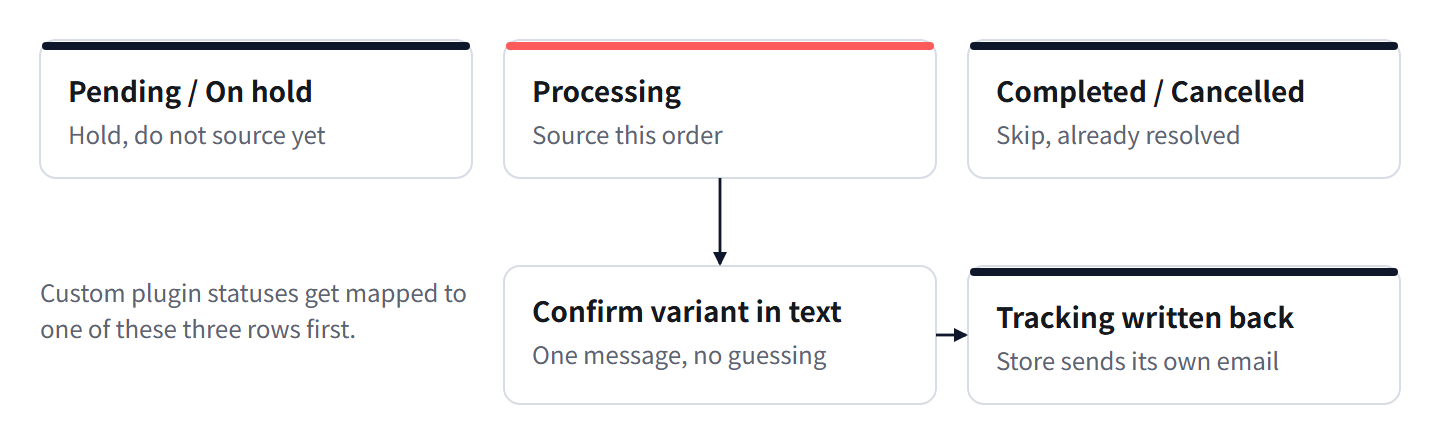
Two rows deserve a note. On hold is a trap: it looks paid-adjacent, and it often means a stock problem someone else is already working. Processing is the row to work from, and it is the only status that should enter the sourcing queue automatically.
Orders placed before you connected: how far back to go
Connecting a store does not only bring future orders. Historical orders can be pulled in and worked, which is useful when you are switching away from a supplier who has already failed you.
The practical limit on how far back to go is not technical. It is the point at which the customer still expects a parcel.
- List every open order older than the connection date, sorted oldest first.
- Cross out anything already marked completed, cancelled or refunded. Those are closed, and sourcing them produces a duplicate.
- Cross out anything older than 30 days. Past that point you are re-quoting rather than fulfilling: marketplace stock and listing prices have moved, and the buyer has usually stopped expecting delivery.
- For each surviving order, re-confirm the variant against the current listing before any purchase. Artefact: a short list of orders that are genuinely still open and still wanted.
- Work the oldest survivor first, because it carries the highest dispute risk.
Thirty days is a working cut-off, not a law. If you sell made-to-order goods with long stated handling times, your window is longer. If you sell impulse items with next-day expectations, it is shorter. What matters is that you set the number before you start, so the queue does not expand while you are working it.
Write tracking back so WooCommerce sends its own completion email
The worst outcome here is a customer receiving two emails: one from your store saying the order is done, and one typed by you saying the same thing with a tracking number in a different format. One of them will look wrong.
The fix is to let WooCommerce own the notification.
- Find out which field your shipping plugin reads for tracking. Most store it as order meta on the order, some read a dedicated tracking table.
- Write the tracking number and carrier name to that field, not to the customer note, so the plugin can render it in its own template.
- Move the order to the status your templates treat as complete. WooCommerce sends the completed order email at that transition.
- Confirm the email went out once by checking the order notes for the sent record. Artefact: exactly one customer-facing email, generated by your store.
- Only then, if your plugin does not render tracking, add a manual note in the order for your own records rather than emailing the buyer again.
| Approach | What the customer receives | Verdict |
|---|---|---|
| Tracking written to the field your plugin reads | The store's own completed email with tracking | Correct |
| Status moved to complete with no tracking written | A completion email with no tracking | Causes a support message |
| Tracking written plus a manual email | Two emails, possibly inconsistent | Avoid |
| Status left on processing after dispatch | No notification at all | The buyer asks where the order is |
Three ways a WooCommerce order produces a wrong purchase
These are the three that recur, in the order in which they tend to bite you.
| Cause | Symptom | Prevention |
|---|---|---|
| Variation attribute drift | The right product arrives in the wrong colour or size | Copy the attribute string from the line item into the sourcing request verbatim, and confirm it against the current listing before purchase |
| Manual or phone order with a freehand product name | The wrong item is purchased entirely | Treat every admin-created order as needing a human clarification message before the goods payment |
| Bundle treated as a single SKU | Part of the order ships, the rest is missing | Source per component and consolidate at the warehouse |
| Quantity held in plugin meta rather than the line item | One unit bought where three were sold | Read quantity from the line item and cross-check the meta total before approving |
The common thread is that WooCommerce puts detail and noise in the same place. A line item meta key might hold a gift message, an engraving, a subscription period, or the quantity. Nothing labels which one matters, so the check has to be done by reading the order rather than trusting the export.
Pre-flight checklist before your first synced order
Run this once, on one order, before you let anything else into the queue.
- Confirm the connection reads orders only, and that your shipping zones, tax classes and plugin settings are untouched.
- Map every custom order status your plugins create to one of: hold, source, or skip.
- Pick one processing order with a simple single-variant line item. Do not start with a bundle.
- Copy the variation attribute string exactly as the store writes it, including capitalisation.
- Check the quantity on the line item against any plugin meta that also holds a number.
- Confirm the shipping address is complete, including the country and postcode, since freight depends on route.
- Send one message with the variant line, quantity, destination and any photo. Attach everything at once.
- Wait for the goods quote and approve it yourself. Nothing should be purchased on your behalf without that approval.
- When QC photos arrive, check the variant first. This is the last point at which you can cancel cleanly.
- After dispatch, confirm tracking landed in the field your plugin reads and that exactly one email went to the customer.
Najczęstsze pytania
Can historical orders be fulfilled, or only new ones?
Both. Historical orders can be pulled in after the store connects. The useful limit is commercial rather than technical: work orders the customer still expects, and treat anything older than about 30 days as a re-quote rather than a fulfilment.
Do I have to change my shipping zones or tax settings?
No. Those are read as zero and written as zero. The connection takes order data and writes tracking back, and leaves configuration alone.
What happens with a manually created admin order?
It works, but it usually carries less variant detail than a checkout order. Send a clarifying message before the goods payment, because the purchase is the expensive place to discover an ambiguity.
Will the customer get two emails?
Only if you send one yourself. Write tracking to the field your shipping plugin reads and move the order to the status your templates treat as complete; WooCommerce sends its own notification at that transition.
How do bundles work?
They are sourced per component and consolidated into one parcel before dispatch. The goods quote arrives per component rather than per order, so budget one approval per component.
Co zrobić w tym tygodniu
- Map every order status in your store, including the custom ones your plugins add, to hold, source or skip.
- Identify the field your shipping plugin reads for tracking, and write it down where the rest of your ops notes live.
- Pull the open orders older than 30 days out of scope and close them honestly, rather than letting them sit in the queue.
- Pick one simple single-variant processing order and run the ten-step checklist on it before touching a second order.
Napisane i aktualizowane przez zespół sourcingu Lovegodrop. Jak powstają i są weryfikowane te strony.
Zacznij od zamówienia, które już sprzedałeś
Połącz sklep Shopify lub WooCommerce, wybierz opłacone zamówienie i zobacz wycenę sourcingu oraz wysyłki dokładnie dla tego zamówienia, zanim się zobowiążesz.